
220-1202 · Security · Updated July 26, 2026
SOHO Router Hardening: Admin Access, UPnP, and Remote Management
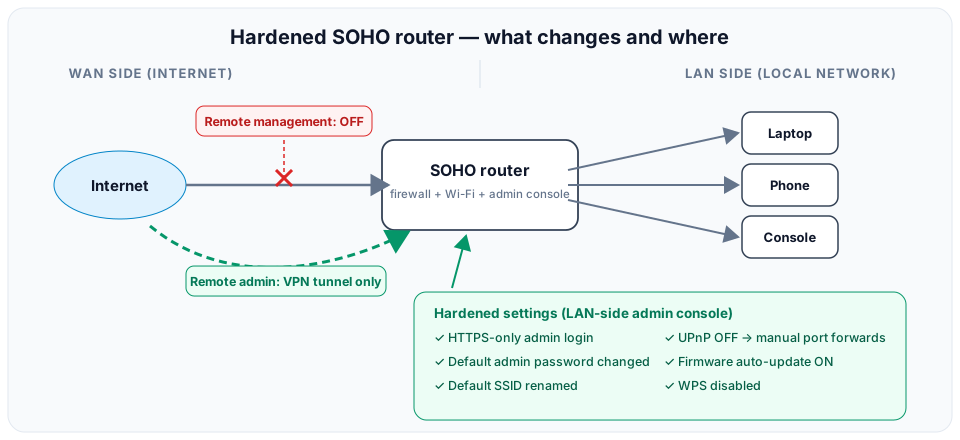
Hardening a small office/home office (SOHO) router means closing the handful of settings that ship insecure from the factory: change the default administrator password and the default SSID, manage the router only over HTTPS from inside the network, disable remote (WAN-side) management, turn off UPnP, and keep the firmware current. Those few changes eliminate the attack paths responsible for the vast majority of compromised home and small-business routers. Everything below is a setting you can reach in the router’s web console in under fifteen minutes. (Choosing the wireless encryption itself — WPA2-AES versus WPA3 — is its own decision, covered in WPA2 vs WPA3.)
Why the router is the target
The router is the one device that touches every packet entering or leaving a small network, and it is usually the least-maintained device on site. Manufacturers ship them with a known default login, a factory SSID that advertises the exact model, and convenience features enabled. Attackers scan the internet continuously for routers with exposed management pages and known default credentials — no skill required, just a list. As the technician, you are typically the only person who will ever open the admin console, so hardening it is your job on day one.
Lock down administrative access
Change the default admin password first. Default credentials for every consumer router model are published openly. Until this password changes, anyone who can reach the login page owns the router. Use a long unique password, and store it in the client’s password manager or documentation — not on a note stuck to the router.
Manage over HTTPS, not HTTP. If the router’s web console is reachable over plain HTTP, every login sends the admin password across the network unencrypted. Anyone positioned to capture that traffic — for example on the same Wi-Fi — reads the credentials directly. Enable the router’s HTTPS management option (and disable the HTTP listener if the firmware allows it) so the session is encrypted with TLS (Transport Layer Security). Expect a browser certificate warning from the router’s self-signed certificate; that is normal for local device management.
Disable remote management on the WAN side. Many routers can expose their admin console to the internet so the owner can log in from anywhere. In practice this means the login page faces every scanner and botnet on Earth, on a well-known port. Unless there is a specific, justified need, turn remote (WAN-side) management off entirely — management should only be possible from a device on the local network. This single toggle removes the router’s biggest external attack surface.
Rename the default SSID. Changing the service set identifier (SSID) away from its factory value is a standard hardening step. The default name typically reveals the manufacturer and often the model, which tells an attacker exactly which known vulnerabilities and default settings to try. Pick a name that identifies nothing about the hardware or the business. Note what this step is and is not: renaming the SSID reduces information leakage; it does not conceal or encrypt the network — for that distinction see SSID hiding and MAC filtering. While you are in the wireless settings, standing up an isolated guest network for visitors and IoT devices belongs to the same hardening pass.
Turn off UPnP
Universal Plug and Play (UPnP) is the feature that lets devices and applications on the LAN ask the router to open inbound ports automatically — no administrator approval, no logging the user ever sees. A game console requests a port mapping for multiplayer voice chat, the router obliges, and it works. That is exactly the problem: the router obliges anything on the LAN that asks.
The real risk is not the game console. It is that any malware that lands on any device inside the network can use UPnP to punch its own holes through the firewall — exposing an internal service to the internet, opening a command-and-control channel, or making an infected machine remotely reachable — all silently and without credentials. UPnP has no authentication; the firewall policy is effectively writable by every process on the LAN.
The hardened approach: disable UPnP and create manual port-forwarding rules for the specific ports a device genuinely needs. The console’s vendor documentation lists them. Manual rules mean the administrator knows and approves exactly what is exposed. If a client insists on UPnP for convenience, document the risk in writing — that conversation is also an exam-relevant professionalism scenario.
Remote administration done right
Technicians and managed service providers (MSPs) legitimately need after-hours access to client routers. The wrong answer is re-enabling WAN-side management “just for us” — an exposed console is exposed to everyone, and attackers do not check whose convenience it was for.
The right pattern is a virtual private network (VPN): the technician establishes an encrypted VPN tunnel into the client’s network (many SOHO routers include a VPN server; otherwise a separate VPN appliance or gateway on the LAN provides it), and then reaches the router’s admin page as if sitting on the local network. The management interface never faces the internet; only the VPN endpoint does, and that endpoint requires authentication and encryption by design. This satisfies both requirements at once — remote reachability for the authorized technician, zero exposure of the console to the open internet.
Keep the firmware current
Router firmware carries vulnerabilities like any other software, and SOHO routers are compromised at scale through flaws that were patched years earlier. During setup, check the manufacturer’s update page in the admin console, apply the current firmware, and enable automatic updates if the router supports them. If it does not, put a recurring firmware check in the client’s maintenance schedule. A router that has not been updated since installation should be treated as suspect.
How the 220-1202 exam tests this
- An identify-the-setting question: a description like “renaming the wireless network identifier away from its factory value” maps to changing the default SSID, or “automatically opens inbound ports without administrator approval” maps to UPnP.
- A management-exposure scenario: the admin console is reachable over plain HTTP, or reachable from the WAN side, and you pick the change that fixes it — enable HTTPS management, or disable remote management respectively.
- A UPnP risk question: a game console needs automatic port mappings, and you must articulate the actual risk — any device or malware on the LAN can open inbound ports silently — rather than vague “UPnP is bad” reasoning.
- An MSP access scenario: remote administration is required without internet-exposing the console, and the correct design is VPN into the LAN, then manage locally — not port-forwarding the admin page or re-enabling WAN management.
SOHO security settings are a staple of the Security domain — the full 220-1202 study guide shows how the domains break down and how to plan your prep, and A+ Core 2 practice questions hit every one of these settings.
Quick reference
- Change the default admin password immediately; defaults for every model are public knowledge.
- Admin console access: HTTPS only — plain HTTP sends the admin login in cleartext.
- Disable WAN-side remote management; manage from the LAN or through a VPN tunnel.
- Rename the default SSID so the network stops advertising its hardware make and model.
- UPnP lets any LAN device — including malware — open inbound ports with no approval; disable it and use manual port forwards.
- For MSP/after-hours access: VPN into the network, then reach the console as a local device.
- Update firmware at installation and on a schedule; enable auto-update where available.
- Disable WPS as part of the same pass — see WEP, WPA/TKIP, and WPS.